A speaker arrives 12 minutes before their session with a revised deck, two embedded videos, and a USB drive labeled “FINAL.” That is when ready room equipment essentials stop being a planning document and become the difference between a controlled handoff and a problem sent directly to the ballroom.
A professional ready room is not just a table with laptops. It is an operational checkpoint where presentations are received, verified, assigned to the correct room, and handed to the right operator without creating version confusion. The equipment matters, but the workflow behind it matters more.
Ready Room Equipment Essentials Start With the Workflow
Start by defining what must happen between a speaker’s arrival and their time on stage. The ready room team needs to collect files, check format and playback, confirm the session and room, communicate any changes, and send approved materials to the operator position. Each step should have an owner.
This is why consumer file-sharing tools often create friction on show day. A shared folder can store a file, but it does not tell an operator whether it is the approved version for Room B at 2:30 p.m. It does not connect the file to an agenda, a room assignment, or a speaker conversation. The ready room needs equipment and software that support the actual production chain.
The scale of the event changes the setup, but not the principle. A one-room corporate meeting may need one ready room workstation and one operator endpoint. A congress with 15 parallel rooms needs controlled routing, clear room naming, and a way to prevent one late update from reaching the wrong screen.
Build the Physical Ready Room Workstation
The primary workstation should be a reliable computer with enough processing power to open large PowerPoint files, render video, and inspect PDFs without delays. Use a current operating system, a local administrator account available to the technical lead, and adequate local storage for the event’s presentation volume. Avoid using a staff member’s personal laptop as the only production machine.
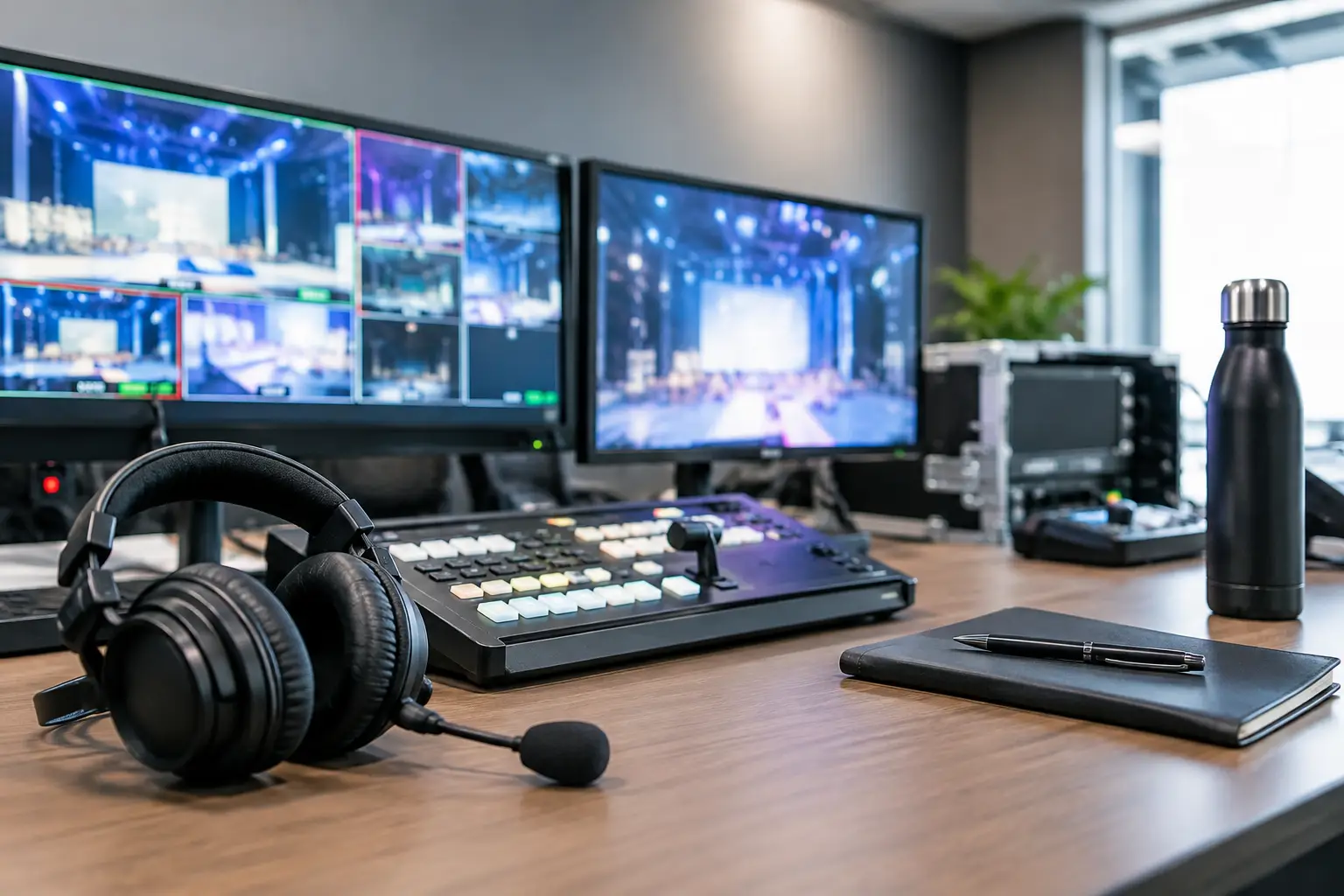
A second display is not a luxury in a busy ready room. One screen can show the presentation under review while the other shows the agenda, delivery status, file information, and communication with the room team. This reduces the number of times an operator has to switch windows while a speaker is standing beside them waiting for confirmation.
Display and Playback Checks
Your review station should include a presentation display that reflects the likely room environment as closely as practical. A standard office monitor can reveal missing fonts and slide layout issues, but it will not always expose problems that appear on the room’s projection system, LED wall, or confidence monitor.
For higher-stakes sessions, provide a test output through HDMI or SDI to a known-good display. Play embedded videos with sound, advance through animations, confirm aspect ratio, and check that the deck opens in the intended application. If the show uses widescreen output, review files in widescreen. If the room runs 4:3, identify the impact before the speaker walks on stage.
Keep common adapters at the desk: USB-C to HDMI, USB-C to USB-A, HDMI to USB-C where appropriate, DisplayPort adapters, and region-specific power adapters for international speakers. Adapters solve access problems, but they are not a delivery workflow. Use them to inspect a source device, then move the approved presentation into the controlled event process.
Power, Network, and Accessories
Every ready room workstation, display, and network device needs protected power. A UPS is particularly useful for the main workstation and network hardware because it gives staff time to save work and maintain communication during a short power interruption. Label power supplies and chargers. Unlabeled chargers accumulate quickly and are frequently removed by mistake.
Use a wired local network for presentation delivery wherever possible. Event Wi-Fi is designed for many users with unpredictable behavior. It may work perfectly during setup and struggle when attendee traffic increases. A dedicated LAN, properly configured switches, and tested Ethernet cables give the ready room a controlled path to technical operator machines.
A small set of practical accessories also earns its place: a USB card reader, spare mouse, keyboard, cleaning cloths, cable ties, a headset for calls, and clearly labeled storage for submitted drives. These are minor items until one is missing at the wrong moment.
The Delivery System Is Core Ready Room Equipment
The most valuable part of the setup is the system that moves approved files from the ready room to the correct room. The goal is not simply to transfer data. The goal is to transfer the right presentation, with its supporting files, to the right operator, with a clear record of what changed and when.
A purpose-built local delivery system should work over the event LAN and remain independent of internet access. It should identify ready room and operator devices, associate presentations with agenda sessions, and route materials by room. This prevents the familiar chain of improvised work: receive a USB drive, copy it to a desktop, send an email, ask whether the operator got it, then discover two versions are open in the control room.
Kondukto is built around this operational model, sending presentations and related media directly from the speaker room to technical operators on the local network. For teams handling parallel sessions, room-based routing and in-app communication provide more control than email attachments or manually managed shared folders.
Do not overlook supporting media. A deck may reference a separate video, PDF, audio file, or font package. Your delivery process should keep those files associated with the session rather than scattering them across multiple folders. The operator needs a complete, usable package, not a filename and a follow-up question.
Add Redundancy Without Creating Clutter
Redundancy should protect the show, not make the workflow harder to understand. Keep a backup ready room workstation ready to take over, maintain a local backup copy of approved files, and provide spare network cables and power supplies. For larger events, have an additional managed switch available or identify a tested fallback network path.
What you should avoid is creating several unofficial backup channels. If staff can use USB drives, email, cloud folders, chat attachments, and desktop copies interchangeably, no one can confidently identify the current version. One primary delivery path and one documented fallback path are usually stronger than five informal options.
The same applies to presentation formats. PowerPoint may be the live format, while a PDF is retained as an emergency visual fallback. That is sensible when the event has tested the PDF and understands its limitations. It is not sensible to assume a PDF will preserve video, animations, builds, or presenter notes.
Control the Handoff, Not Just the File
A file check is incomplete until the session details are confirmed. Ask the speaker for the session title, scheduled time, room, and whether the submitted version is final. Confirm whether they will use their own laptop, need presenter notes, or have any playback requirements that the operator must know about.
The ready room should also set a clear policy for late revisions. A speaker can update a deck minutes before a session, but the team needs a visible cutoff and an escalation process. If an update arrives after the operator has loaded the file, the ready room staff should notify the operator directly and confirm receipt. Do not rely on a filename such as “final_final_v3.”
Use consistent naming even when your software handles agenda routing. A useful convention includes the session time, room, speaker name, and version or update time. The point is not to make staff type more. It is to make a file recognizable when a technical lead is troubleshooting under pressure.
Test the Ready Room Before Speakers Arrive
Run a full rehearsal of the handoff path before doors open. Submit a deck from the ready room, confirm it reaches the intended operator machine, open it using the room’s presentation workflow, and verify that the operator can respond to the ready room. Repeat this for at least one video-heavy file and one deck with nonstandard fonts.
Test the failure cases as well. Disconnect internet access if the workflow is designed to run locally. Restart a ready room device. Confirm the backup workstation can access the agenda and send a file. Check whether device names, room names, and operator assignments are clear enough that a new technician would not send material to the wrong endpoint.
A short pre-show test catches problems that a generic IT check will miss: a room mapping error, a blocked firewall port, a missing video codec, or a display adapter that only works at one resolution. These are small faults until the first keynote is waiting.
The best ready room does not look busy because its team is guessing. It looks calm because every handoff has a defined path, every operator knows where to look, and the equipment has already been tested for the moment when the schedule leaves no room for improvisation.