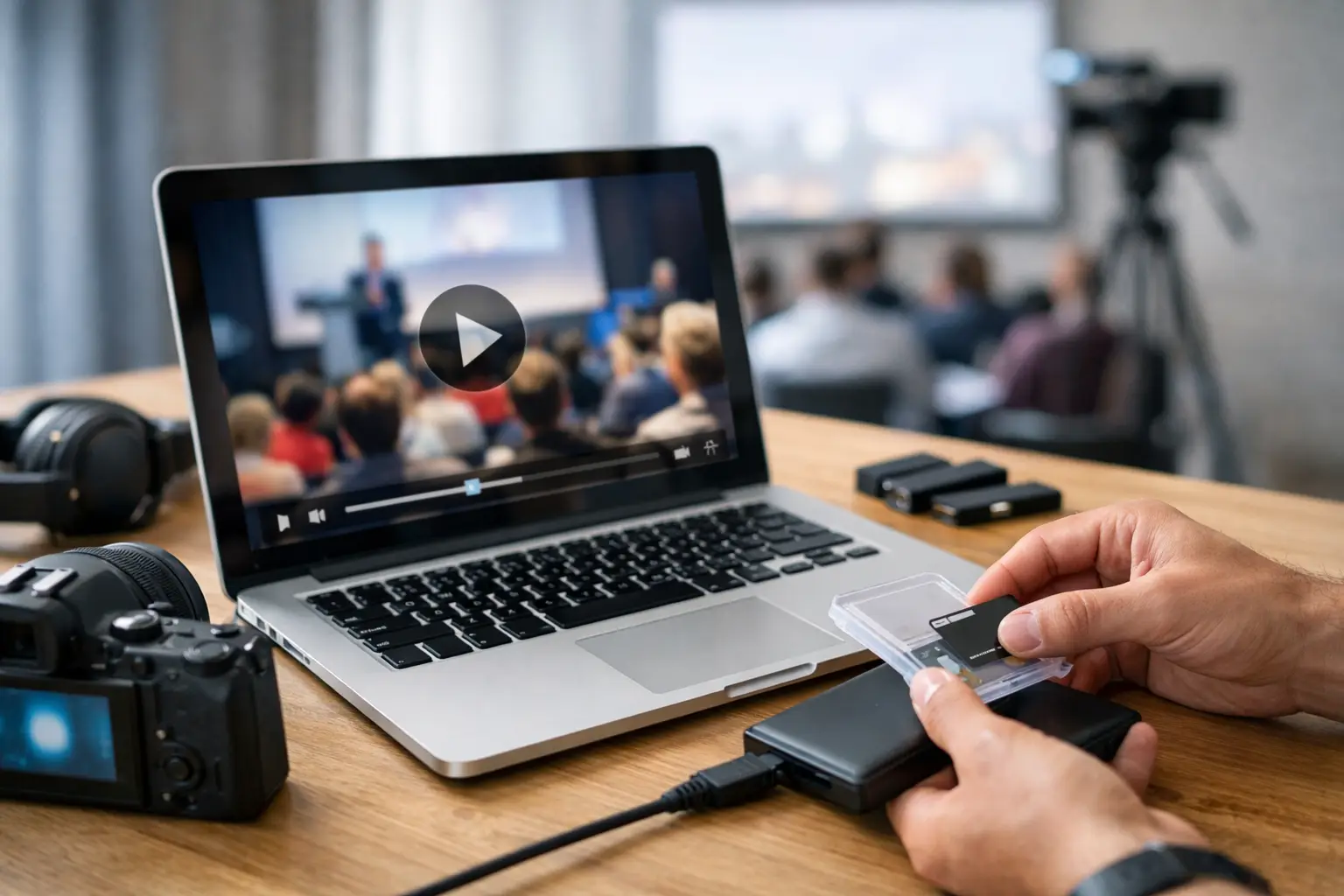
A presentation can look perfect in the speaker room and fail the moment it reaches the ballroom. The usual cause is not the slide deck itself. It is a video that was linked from a desktop folder, encoded in an unsupported format, or left behind when the deck was copied. Knowing how to package embedded videos is a basic show-day discipline, especially when the same session must run in multiple rooms.
For an AV team, a packaged presentation is not simply a PowerPoint file on a shared drive. It is a complete, verified playback package: the deck, every video and audio asset, any required fonts or supporting files, and a clear record of what was tested. The goal is simple: an operator should be able to open the approved version on the assigned playback machine without hunting for media, reconnecting cloud accounts, or asking the speaker to resend anything five minutes before doors open.
Why embedded video still fails at live events
“Embedded” sounds self-contained, but it is not always a guarantee. PowerPoint versions handle media differently, and a deck may contain a mixture of genuinely embedded files, linked assets, online video references, and content inserted with add-ins. A file can play on the speaker’s laptop because the source media is available locally, then show a blank frame on the operator machine.
Codec compatibility creates another failure point. An MP4 extension does not tell you enough about the file inside it. Two MP4 files can use different video or audio codecs, bitrates, frame rates, and profiles. One may play cleanly through the presentation software and another may not render, may have no audio, or may stutter under playback.
Then there is the live-event variable: the presentation rarely stays on one computer. It may be reviewed in the speaker ready room, sent to a room operator, checked by a graphics operator, and duplicated as a backup. Each transfer is an opportunity for someone to copy only the deck, rename a folder, or replace the approved version with an older one.
Packaging controls those risks. It does not eliminate the need for testing, but it makes testing meaningful because the operator is testing the same set of files that will be used on show day.
How to package embedded videos for conference playback
Start by deciding what the operator actually needs to play. If the session will run from PowerPoint, the package should include the presentation file and all media required by that presentation. If videos will be called separately by a playback operator, include clean standalone video files as well. Do not assume a video embedded in slides is the only version worth supplying. A standalone file gives the technical team a recovery path if a presentation application misbehaves.
Create one clearly named master folder for the session before you move anything. Use a naming convention that matches the agenda and room assignment, such as `Day2_1030_RoomB_Keynote_SpeakerName`. Avoid vague folders such as “final,” “new final,” or “video deck.” At a multi-room event, naming is operational routing. The right file in the wrong room is still a show-day problem.
Place the deck, videos, audio, PDFs, and any supplemental assets inside that folder. Keep the original source media there even when PowerPoint reports that it is embedded. If a video must be replaced or rebuilt, the operator has the approved source at hand.
On Windows, PowerPoint’s Package Presentation for CD function can collect the presentation and linked files into a single folder. Despite the old name, the output does not need to go to a disc. This is useful when the deck contains linked content because it gathers those dependencies and can update paths for the packaged copy. It should still be treated as a collection tool, not proof of successful playback.
On Mac, workflows vary more by PowerPoint version and by how the media was inserted. The practical approach is to save a final copy of the deck into the master session folder, place all source media alongside it, and test that copy on the intended playback environment. Do not package on one operating system and assume the result has been validated on another.
For critical sessions, export a backup version as a video or PDF only when it supports the show plan. A rendered video can be an effective emergency fallback for a linear presentation, but it removes operator control over builds, live speaker pacing, and slide-level changes. It is a backup, not a universal replacement for the native deck.
Standardize video before it becomes a problem
The safest delivery format for most conference playback workflows is MP4 using H.264 video and AAC audio. That does not make every H.264 file identical, but it greatly reduces the odds of a surprise compared with unusual codecs, legacy formats, or videos exported from consumer editing tools with inconsistent settings.
Ask speakers for original-quality files where possible. A video pulled from a messaging app or a low-resolution web download may technically play, yet look poor on a large LED wall or projection system. Resolution, frame rate, audio level, and aspect ratio should be reviewed against the room system, not judged on a laptop screen.
If you convert a file, preserve the original in the package and label the converted version clearly. For example, use `OpeningVideo_ORIGINAL.mov` and `OpeningVideo_PLAYBACK.mp4`. Never leave two similar files named `video_final.mp4` and `video_final2.mp4` for an operator to interpret under pressure.
Test the package where it will run
A package is only complete when it has been opened away from the computer that created it. Copy the full session folder to a clean test machine, or to the actual room playback machine, and run the presentation from that copy. Do not test from the speaker’s desktop, Downloads folder, or cloud-synced location.
Check every slide containing media. Let each video run long enough to confirm picture, audio, aspect ratio, and the transition back to the deck. If playback is set to start automatically, verify that it starts automatically. If the presenter expects to click the video, verify that behavior too. Small differences in presentation settings can change the cueing sequence.
Pay close attention to audio routing. A video that plays through laptop speakers in the ready room may be silent once the room machine is connected to the console. The room operator needs to know whether audio is embedded, whether it is expected through HDMI or another output, and whether there is a separate playback file available.
Also test in the event’s actual display mode. Presenter View, extended desktop arrangements, confidence monitors, and screen-management systems can affect where the deck opens and what the presenter sees. The video may work perfectly while the presenter loses notes or the audience sees the wrong output.
Build a delivery workflow that preserves the approved version
The packaging process fails when the approved folder becomes just another file drop. Give each session a defined status: received, checked, approved, delivered to room, and changed after approval. If a speaker sends a replacement video, it should create a visible version change, not an invisible overwrite.
This matters most at events with several speaker rooms and operators. The team needs one source of truth for the current package, tied to the agenda and routed to the correct room. Consumer file-sharing methods make this harder because they separate the file from the operational context. An attachment does not tell the operator whether it is the latest deck, what session it belongs to, or whether someone has tested the embedded media.
A purpose-built presentation delivery workflow keeps materials associated with a session and sends them directly to the appropriate operator machine over the local network. Kondukto is designed around that reality: speaker room teams can deliver the complete session package to a room operator without relying on USB handoffs, email chains, or venue internet. The transfer is only part of the value. The important part is preserving the agenda, room assignment, and communication trail around the file.
Know when not to rely on embedded playback
Embedded video is convenient when a speaker needs a single-click, self-contained presentation. It is less suitable when the video is long, mission-critical, high bitrate, or requires exact audio and playback control. In those cases, a separate playback cue may be safer. The operator can preload the file in the preferred playback application, confirm audio routing, and take the cue independently of PowerPoint.
This is not a criticism of embedded video. It is a decision based on risk. A short product clip inside a standard keynote may be fine in the deck. A seven-minute opening film with a tightly timed audio cue deserves a dedicated playback plan and a tested backup.
The best package gives the room team choices without creating confusion: one approved native deck, clearly labeled standalone media, and a record that both were tested. When the schedule is tight and the room is full, that preparation gives operators something more valuable than another attachment: a file they can trust.