
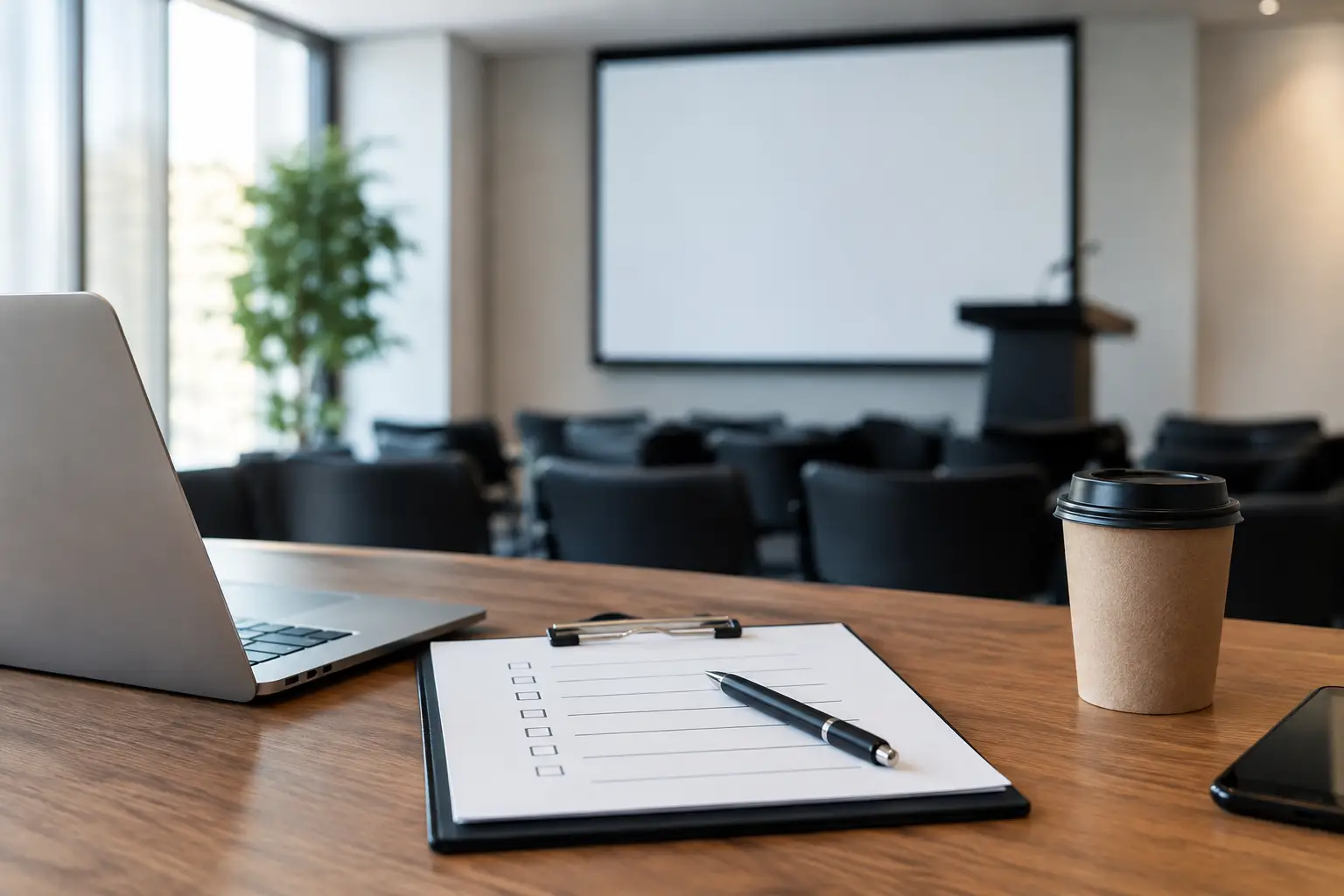
A presentation can look perfect on a speaker's laptop and still fail when it reaches the show system. A missing font, a linked video on a desktop folder, the wrong aspect ratio, or an old version routed to the room can turn a routine session change into a visible delay. Top presentation QA checklists give the speaker room and AV team a shared method for catching those failures before the presenter is at the lectern.
The goal is not to inspect every slide for design preference. It is to confirm that the file will play correctly, is assigned to the correct session, and can be retrieved quickly when the schedule moves. That distinction matters when dozens or hundreds of decks pass through a multi-room event.
Start QA at the handoff, not five minutes before session start
Presentation QA starts when the file enters the workflow. If a deck arrives by USB, email, cloud folder, or speaker upload, the first task is to create a controlled copy and identify it clearly. The team needs to know who submitted it, which session it belongs to, when it was received, and whether it replaces an earlier version.
This is where improvised workflows begin to fail. A folder full of files named Final, Final 2, or Updated is not a version-control process. It forces operators to make assumptions under pressure. A good QA process turns the handoff into a traceable operational event: one presentation, one current version, one destination.
For conferences with frequent agenda changes, confirm the session code, room, speaker, and presentation title against the current run of show. Do not rely on a filename alone. Speakers regularly revise titles, switch sessions, or send a new deck through a colleague.
Top presentation QA checklists by risk area
A useful checklist is short enough to use consistently and specific enough to catch failures that matter on screen. Split it into stages so the right person handles the right check. The speaker room team can verify content and session details; the operator confirms playback and display behavior in the room.
1. File intake and version control
Before opening the deck, establish whether it is the correct file. This is the least technical stage, but it prevents one of the most common show-day errors: running an older version.
- Confirm the speaker name, session title, room, and scheduled start time against the agenda.
- Record the receipt time and identify whether the file is new, revised, or a replacement.
- Apply a consistent filename that includes the session identifier and version or timestamp.
- Keep one approved current version in the operator destination, not several near-identical copies.
- Preserve the original submission separately when your event process requires an audit trail.
There is a trade-off here. Locking a version too early can frustrate a speaker who has a legitimate last-minute correction. Leaving every version available creates a bigger risk for the operator. The practical answer is to accept revisions through a defined handoff point, clearly mark the approved copy, and communicate the change to the room team.
2. Slide and font checks
Open the presentation on a machine that reflects the playback environment. A deck built on a speaker's personal device may substitute fonts, shift line breaks, crop images, or change slide layouts on the show system.
Check that the slide count is plausible for the session length and that the opening and closing slides are present. Review title slides, dense charts, tables, and any slides with unusual formatting. These are where font substitution and layout problems are easiest to spot.
- Verify the file opens without repair prompts, password requests, or missing-content warnings.
- Check that key fonts render correctly and that no text wraps, overlaps, or disappears.
- Confirm slide size matches the room output, typically 16:9 unless the venue specification says otherwise.
- Review slides with small text, detailed graphics, or pale color combinations for projection readability.
- Confirm the deck displays correctly in the presentation software used for playback.
Do not automatically convert every deck to PDF. A PDF can protect layout, but it also removes builds, animations, embedded media, and speaker-driven navigation. Use it as a fallback or for static presentations, not as a universal replacement for the source file.
3. Media, animation, and audio checks
Video is where a presentation can pass a quick preview and still fail live. The media may be linked instead of embedded, use an unsupported codec, depend on online access, or have audio routed incorrectly. Play every video from start to finish when possible, especially the first and last seconds where edits or blank frames often appear.
- Play all video and audio content on the designated playback machine, not only on the submission device.
- Confirm linked media is packaged with the deck or replaced with a verified local copy.
- Check resolution, frame rate, playback smoothness, and audio level through the room signal path.
- Test presentation builds, animations, and hyperlinks that are essential to the speaker's message.
- Identify any internet-dependent content and agree on a fallback before the session.
Ask the speaker whether media is intended to play with audio and whether they expect it to advance automatically. That simple question avoids the operator guessing during a live presentation. If a video has no safe fallback, flag it to the session lead rather than silently hoping the room network will cooperate.
4. Room routing and operator readiness
A presentation is not ready just because it passed content checks. It must reach the correct operator machine, be visible in the correct room, and be easy to locate at the moment it is needed. This is the final operational check.
- Confirm the approved file has been delivered to the correct room and operator workstation.
- Verify the room, session, and speaker labels match the latest agenda.
- Open the file from the operator's destination and test presenter view if it will be used.
- Confirm the confidence monitor, main screen, and any recording or relay feed receive the expected output.
- Make sure the operator knows about special cues, videos, remote-control needs, or late revisions.
A purpose-built local-LAN workflow such as Kondukto keeps this handoff visible without relying on USB drives, email attachments, or venue Wi-Fi. The advantage is not merely faster file transfer. It is knowing which presentation was sent, where it was routed, and whether the receiving operator has it.
Build QA around the event schedule
The strongest checklist is connected to the agenda, not stored as a generic spreadsheet that someone must interpret manually. Sessions, rooms, speakers, and operators are already the structure of the event. Your QA process should follow that structure.
Start with priority sessions: opening plenaries, executive keynotes, sessions with video, multilingual presentations, and rooms with fast turnarounds. These have the highest cost of failure. Then work through standard sessions based on their scheduled start time and set a cutoff for final technical checks.
For simultaneous interpretation, add one more question: will the interpreters receive the same current slide version used by the operator? A late deck revision that reaches the screen but not the booths creates a different kind of failure. Synchronization must include every team that depends on the presentation.
Assign ownership before the room opens
Checklists fail when everyone assumes someone else completed them. Give each stage an owner. The speaker room manager owns intake and speaker confirmation. The presentation technician owns file and media validation. The room operator owns final playback and display verification. The show caller or production lead owns escalation when a deck is late, broken, or changed after cutoff.
Use statuses that are operationally clear: received, under review, approved, delivered, revised, and issue flagged. Avoid vague labels such as done or checked. They do not tell the next person whether the deck is safe to run.
A QA checklist cannot remove every live-event variable. Speakers will still arrive late, files will still change, and schedules will still move. What it does is make the current state visible, give teams a repeatable response, and keep a small issue from becoming a room-wide interruption. When the session starts, the operator should be focused on the speaker and the show, not searching for the right deck.